Included with Personal
Print your own ID Label
Sign in, add a Security Key, and NOPKEY creates its unique ID and print-ready QR Label. Personal is free for up to 10 Security Keys.
Sign-in required · No payment required · Print at home or workScan the QR code or enter the printed NOPKEY ID to open the record for that key. Sign in with an account that has access to view its private details.
Personal is free for up to 10 Security Keys. Official durable ID Labels are sold separately.
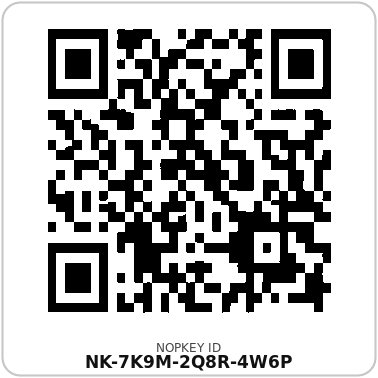
Both options open the same type of NOPKEY Security Key record. The difference is the physical label—not the management system.
Sign in, add a Security Key, and NOPKEY creates its unique ID and print-ready QR Label. Personal is free for up to 10 Security Keys.
Sign-in required · No payment required · Print at home or workChoose a ready-to-use, preprinted physical Label designed for Security Key use. Scan it after purchase and add the label to your account.
Sold separately · Preprinted and ready to set upMeasure the clear area before choosing a size. All three sizes work with the same NOPKEY features. The example shown here is 16 × 16 mm.
Keep the physical key connected to its name, role, and recorded services.
Give similar-looking Security Keys distinct physical identities.
Scan on a phone or enter the printed ID on a computer to reach the correct record.
Update the key’s details and see which recorded services may need a backup or follow-up.
Choose the path that matches your label. You do not need to buy an official Label to start.
Follow the Security Key manufacturer’s instructions and NOPKEY placement guidance. Do not cover a part needed to operate or identify the key.
The label links to a record you maintain—not to your account credentials. Scanning it does not grant access to your accounts or prove that the key can sign in to a service.